- Open ActiveSync and Task Manager.
- In Task Manager, click on the Applications tab. Select "Microsoft ActiveSync." Select "End Task."
- Now click on the Processes tab. Select the "wcescomm.exe" and then press the "End Process" button. Do the same thing for "WCESMgr.exe" if it's there.
- Unplug your device from the computer
- Go to Start Menu->All Programs and relaunch ActiveSync.
- Wait until ActiveSync starts and then plug your phone back in.
Showing posts with label ActiveSync. Show all posts
Showing posts with label ActiveSync. Show all posts
Thursday, February 28, 2008
Fixing a Gray ActiveSync
As a Windows Mobile developer, I typically work with multiple WM devices that I continuously plug in and out of our USB ports as I'm testing software. Sometimes, this confuses ActiveSync. For example, say my WM device is plugged into my desktop, ActiveSync is green. All is good. I unplug the phone to test something (e.g., GPS sensor) and walk around. Five minutes later, I stop the GPS software and plug my phone back into my desktop. However, now ActiveSync stays gray. Rather than restarting, which is what I usually do in this situation (though I hate restarting cause I usually have a 100 windows open), I do the following:


Sunday, February 18, 2007
Oh No, Not Again, ActiveSync
My ActiveSync posts (e.g., ActiveSync Sit & Spin) are the most visited blog entries on this site by nearly an order of magnitude. It's clear that many others have encountered the same problems as I. ActiveSync 4.5 beta, however, was working very well for me--in fact, flawlessly. So, perhaps I should not have been so eager to upgrade to the full release. Now, my current problem could be completely coincidental with my upgrade--I'd been running 4.5 for two straight days without experiencing a any problems. However, yesterday I plugged in my Cingular 2125 WM5 SmartPhone and a dialog box popped up that read "The software you are installing for this hardware: SmartPhone USB Sync has not passed Windows Logo testing to verify its compatibility with Windows XP." (see Figure 1 below)
 Figure 1: Windows Logo Testing Dialog
If you click "STOP Installation" the SmartPhone device will not be recognized by your computer; thus, you must press "Continue Anyway." In my two years of SmartPhone development, I have never seen this dialog (not sure if it is related to ActiveSync 4.5 or not). After selecting "Continue Anyway," ActiveSync opened and properly synchronized my SmartPhone. However, after unplugging the phone and plugging it in again, I received another dialog box--this one was a bit more alarming: "One of the USB devices attached to this computer has malfunctioned, and Windows does not recognize it." (see Figure 2 below)
 Figure 2: USB Device Not Recognized
After this point, no amount of restarting (either my computer or device) would fix this issue. I'm not sure if Figure 2 is related to Figure 1 at all, but it seems likely. Interestingly, my other WM5 device (a Pocket PC Phone) still synchronized fine.
I was able to fix the problem by:
 Figure 1: Windows Logo Testing Dialog
If you click "STOP Installation" the SmartPhone device will not be recognized by your computer; thus, you must press "Continue Anyway." In my two years of SmartPhone development, I have never seen this dialog (not sure if it is related to ActiveSync 4.5 or not). After selecting "Continue Anyway," ActiveSync opened and properly synchronized my SmartPhone. However, after unplugging the phone and plugging it in again, I received another dialog box--this one was a bit more alarming: "One of the USB devices attached to this computer has malfunctioned, and Windows does not recognize it." (see Figure 2 below)
 Figure 2: USB Device Not Recognized
After this point, no amount of restarting (either my computer or device) would fix this issue. I'm not sure if Figure 2 is related to Figure 1 at all, but it seems likely. Interestingly, my other WM5 device (a Pocket PC Phone) still synchronized fine.
I was able to fix the problem by:
- Unplugging device from computer
- Uninstalling ActiveSync 4.5
- Restarting Computer
- Reinstalling Activesync 4.5
- Plugging device back in
Thursday, February 15, 2007
ActiveSync 4.5 Released
You can download ActiveSync 4.5 here. The readme.doc includes an overview of new features, a select few are below.
- Feature: A device can stay connected to cellular and wireless networks while also connected to PC.
- Benefit: Enables the device to receive incoming VoIP calls and MMS messages when it is connected to a PC.
- Feature: An integrated troubleshooter utility is included.
- Benefit: The utility scans your PC and device to identify problems that can affect the use of your device with the PC.
- Feature: Overall stability has been improved.
- Benefit: Enhances the reliability of connecting devices and syncing.
- Feature: USB support has been improved.
- Benefit: ActiveSync 4.5 provides the fastest USB transport between your PC and your mobile device to date.
Wednesday, December 13, 2006
2125 ActiveSync Internet Pass Through
I was trying to use ActiveSync as a pass through to my laptop's internet connection so that I could debug a HttpWebRequest problem while tethered to VS2005. However, I couldn't even get PIE (Pocket IE) to use the ActiveSync connection much less my app--well, now I'm at least half way there. I can browse the web using PocketIE and ActiveSync as my internet connection.
1) Open ActiveSync on your computer, select File->Connection Settings. In the ComboBox below "This computer is connected to:" make sure "The Internet" is selected.
2) In PIE, select Tools->Options->Connections. Then, select "The Internet" as your network.
Now, I'm going to see if my own app can do this.
1) Open ActiveSync on your computer, select File->Connection Settings. In the ComboBox below "This computer is connected to:" make sure "The Internet" is selected.
2) In PIE, select Tools->Options->Connections. Then, select "The Internet" as your network.
Now, I'm going to see if my own app can do this.
Tuesday, July 04, 2006
ActiveSync, A Lesson Learned
At the risk of jumping the gun here, it appears that my ActiveSync woes were not due to Microsoft's negligence or poor programming (though, I suppose, they really should have had the ActiveSync troubleshooter page much earlier, circa 4.0 or even 3.X). In fact, it was my own fault for not noticing that my IT department at work packaged BlackICE (a firewall program) with our VPN software. So, simply by installing our VPN (a rather innocuous gesture), I created a firewall that prevented TCP traffic over port 990.
Now, I'm not 100% confident that this will solve all of my ActiveSync issues but it appears that, at the moment, I've figured out the connection problem.
Now, I'm not 100% confident that this will solve all of my ActiveSync issues but it appears that, at the moment, I've figured out the connection problem.
Sunday, July 02, 2006
ActiveSync Connection Problems Continue
I finally decided to post to the ActiveSync newsgroup about my ActiveSync issues (here). Here's a copy of the post:
My laptop will not connect to any of my WM 5.0 devices (including the i-mate KJAM, the Cingular 2125, and the T-MOBILE SDA). Though I've experienced this problem in the past, I've been able to uinstall and reinstall ActiveSync 4.2 and restart my computer to solve the problem.
I've been blogging about my problematic encounters with ActiveSync for a while now but have never sought the expertise of this newsgroup. I'll provide a quick summary of my ActiveSync issues here. You can visit my blog for more details: http://csharponphone.blogspot.com/2006/05/activesync-41-sit-spin.html
Basically, I plug-in my WM 5.0 device, the little networking animation starts up in the taskbar (and says acquiring network address, etc.). This icon dissapears and then the ActiveSync icon in the taskbar turns green and starts to spin. This continues until a timeout is reached at which point I'm given a choice of visiting Microsoft's troubleshooter webpage (it then forwards me on to the "If ActiveSync Cannot Receive Data Through Port 990" page). I've tried following all of the previous advice posted here and on the web, but to no avail. My laptop is running Windows Firewall and McAfee VirusScan Enterprise 8.0.0.
Any help from MVPs, Microsoft employees, or anyone with a clue into what might be happening would be much appreciated.
NETSTAT RETURNS:
Active Connections
Proto Local Address Foreign Address State
TCP 127.0.0.1:1150 127.0.0.1:1151 ESTABLISHED
TCP 127.0.0.1:1151 127.0.0.1:1150 ESTABLISHED
TCP 192.168.2.76:1038 64.233.167.125:5222 ESTABLISHED
IP-CONFIG RETURNS:
Ethernet adapter Local Area Connection 16:
Connection-specific DNS Suffix . :
Description . . . . . . . . . . . : Windows Mobile-based Device #14
Physical Address. . . . . . . . . : 80-00-60-0F-E8-00
Dhcp Enabled. . . . . . . . . . . : Yes
Autoconfiguration Enabled . . . . : No
IP Address. . . . . . . . . . . . : 169.254.2.2
Subnet Mask . . . . . . . . . . . : 255.255.255.0
Default Gateway . . . . . . . . . :
DHCP Server . . . . . . . . . . . : 169.254.2.1
Lease Obtained. . . . . . . . . . : Sunday, July 02, 2006 1:53:41 PM
Lease Expires . . . . . . . . . . : Tuesday, August 01, 2006 1:53:41 PM
Update: 07/04/2006 11AM: Here's my follow-up to the post above:
I'm ashamed to admit this, but it never occurred to me to check my
process list to see if there was any networking software running on my
computers that I did not know about. Imagine my surprise when I saw
blackd.exe (part of the BlackICE firewall package). As soon as I
noticed this, I figured this might be the root of my problem. It seems
the company that I work for includes a custom install of the BlackICE
installation with their VPN software. I force closed the process in
Task Manager, plugged in my WM 5.0 device and, what do you know,
ActiveSync turns green immediately and says connected.
I probably would have thought of this earlier on, but ActiveSync would
occassionally work--it wasn't a consistent problem. This maybe more an
issue with BlackICE however.
Unfortunately, the install of BlackICE that I have does not include a
frontend, so I must manually edit their configuration file to open the
ActiveSync related ports (despite warnings in the file itself against
it).
So, in the end, it appears my frustration was misdirected at Microsoft.
It really should have been at my IT department for not disclosing that
BlackICE was packaged with our VPN.
Hopefully now my ActiveSync problems are solved.
My laptop will not connect to any of my WM 5.0 devices (including the i-mate KJAM, the Cingular 2125, and the T-MOBILE SDA). Though I've experienced this problem in the past, I've been able to uinstall and reinstall ActiveSync 4.2 and restart my computer to solve the problem.
I've been blogging about my problematic encounters with ActiveSync for a while now but have never sought the expertise of this newsgroup. I'll provide a quick summary of my ActiveSync issues here. You can visit my blog for more details: http://csharponphone.blogspot.com/2006/05/activesync-41-sit-spin.html
Basically, I plug-in my WM 5.0 device, the little networking animation starts up in the taskbar (and says acquiring network address, etc.). This icon dissapears and then the ActiveSync icon in the taskbar turns green and starts to spin. This continues until a timeout is reached at which point I'm given a choice of visiting Microsoft's troubleshooter webpage (it then forwards me on to the "If ActiveSync Cannot Receive Data Through Port 990" page). I've tried following all of the previous advice posted here and on the web, but to no avail. My laptop is running Windows Firewall and McAfee VirusScan Enterprise 8.0.0.
Any help from MVPs, Microsoft employees, or anyone with a clue into what might be happening would be much appreciated.
NETSTAT RETURNS:
Active Connections
Proto Local Address Foreign Address State
TCP 127.0.0.1:1150 127.0.0.1:1151 ESTABLISHED
TCP 127.0.0.1:1151 127.0.0.1:1150 ESTABLISHED
TCP 192.168.2.76:1038 64.233.167.125:5222 ESTABLISHED
IP-CONFIG RETURNS:
Ethernet adapter Local Area Connection 16:
Connection-specific DNS Suffix . :
Description . . . . . . . . . . . : Windows Mobile-based Device #14
Physical Address. . . . . . . . . : 80-00-60-0F-E8-00
Dhcp Enabled. . . . . . . . . . . : Yes
Autoconfiguration Enabled . . . . : No
IP Address. . . . . . . . . . . . : 169.254.2.2
Subnet Mask . . . . . . . . . . . : 255.255.255.0
Default Gateway . . . . . . . . . :
DHCP Server . . . . . . . . . . . : 169.254.2.1
Lease Obtained. . . . . . . . . . : Sunday, July 02, 2006 1:53:41 PM
Lease Expires . . . . . . . . . . : Tuesday, August 01, 2006 1:53:41 PM
Update: 07/04/2006 11AM: Here's my follow-up to the post above:
I'm ashamed to admit this, but it never occurred to me to check my
process list to see if there was any networking software running on my
computers that I did not know about. Imagine my surprise when I saw
blackd.exe (part of the BlackICE firewall package). As soon as I
noticed this, I figured this might be the root of my problem. It seems
the company that I work for includes a custom install of the BlackICE
installation with their VPN software. I force closed the process in
Task Manager, plugged in my WM 5.0 device and, what do you know,
ActiveSync turns green immediately and says connected.
I probably would have thought of this earlier on, but ActiveSync would
occassionally work--it wasn't a consistent problem. This maybe more an
issue with BlackICE however.
Unfortunately, the install of BlackICE that I have does not include a
frontend, so I must manually edit their configuration file to open the
ActiveSync related ports (despite warnings in the file itself against
it).
So, in the end, it appears my frustration was misdirected at Microsoft.
It really should have been at my IT department for not disclosing that
BlackICE was packaged with our VPN.
Hopefully now my ActiveSync problems are solved.
Two Inch View
Just added an RSS feed to a new blog called "The Two Inch View," which is dedicated to "Windows Mobile media and entertainment." The site design is crisp and very readable and the author has a long history with WindowsCE/Mobile (a former MVP). The site is actually sponsored by Windows Mobile, which hopefully implies a strong foundation and dedication to frequent updates. It currently has some posts on the Windows Mobile Device Center, which looks like a new skin on top of ActiveSync (and, hopefully, includes some bug fixes to ActiveSync as well).
Tuesday, June 13, 2006
More ActiveSync Woes
I've had trouble with "cradling the emulator" in ActiveSync ever since I found out about this feature. In VS2005, open Tools->Device Emulator Manager. In the Emulator Manager, right click on a device and select "connect." Once the specified emulator has launched and loaded, you can right click on that device (again in the Emulator Manager) and select "cradle." This should cradle the emulator to ActiveSync so you can, for example, explore the emulator file system. However, this feature rarely works for me. Typically what happens is that after I select "cradle", the icon immediately changes (signifying that the device is indeed cradled) but ActiveSync does not respond. This seems independent of the "sit and spin" issue though as the ActiveSync icon does not change to green, nor does it animate at all. It simply stays gray.
Ah, ActiveSync, how you destroy my workday efficiency.
Update (07/12/2006 11:00AM): OK, thanks to Sriram's feedback (see Comments), I figured this out. Here are the steps (click on the images to see full size screenshots).
Step 1: Open Device Emulator Manager in VS2005 (Tools->Device Emulator Manager)
Step 2: Right click on your device of interest, start it.
Step 3: After the device has started, right click on the device again and select 'Cradle.' See Figure 1 below.
Step 4: The icon should change to represent that the device has been cradled. However, this does not necessarily mean that ActiveSync has actually connected to the device. See Figure 2 below.
Step 5: If ActiveSync has not actually connected to the device, yet the cradled icon is shown, open up ActiveSync, select File->Connection Settings. This will open up a Connection Settings Dialog. From there, click the Connect button. See Figure 3 below. This should find and connect your emulator device to ActiveSync.
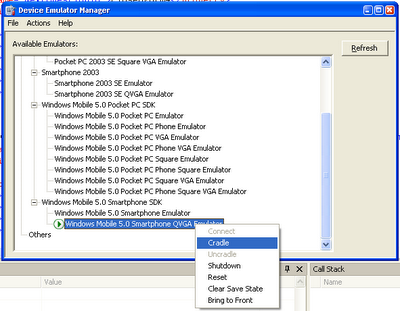 Figure 1: Cradle the emulator
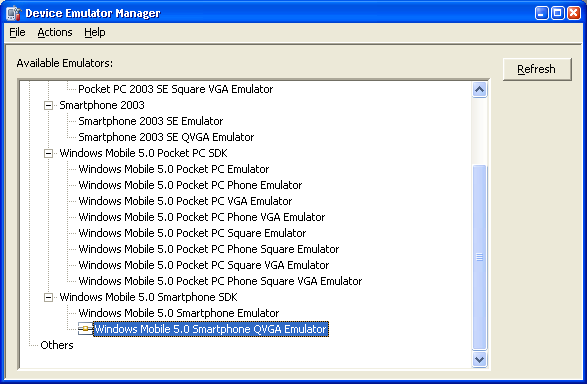 Figure 2: Emulator supposedly cradled
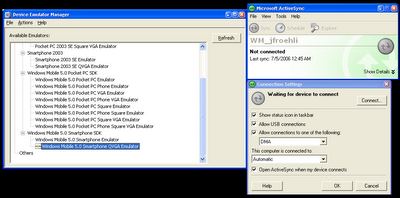 Figure 3: Open ActiveSync, click on File->Connection Settings. In the Connection Settings Dialog, click on the Connect... button. This should find your cradled emulator device.
Ah, ActiveSync, how you destroy my workday efficiency.
Update (07/12/2006 11:00AM): OK, thanks to Sriram's feedback (see Comments), I figured this out. Here are the steps (click on the images to see full size screenshots).
Step 1: Open Device Emulator Manager in VS2005 (Tools->Device Emulator Manager)
Step 2: Right click on your device of interest, start it.
Step 3: After the device has started, right click on the device again and select 'Cradle.' See Figure 1 below.
Step 4: The icon should change to represent that the device has been cradled. However, this does not necessarily mean that ActiveSync has actually connected to the device. See Figure 2 below.
Step 5: If ActiveSync has not actually connected to the device, yet the cradled icon is shown, open up ActiveSync, select File->Connection Settings. This will open up a Connection Settings Dialog. From there, click the Connect button. See Figure 3 below. This should find and connect your emulator device to ActiveSync.
 Figure 1: Cradle the emulator
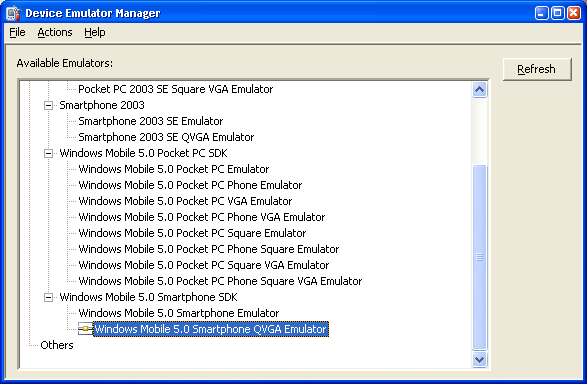 Figure 2: Emulator supposedly cradled
 Figure 3: Open ActiveSync, click on File->Connection Settings. In the Connection Settings Dialog, click on the Connect... button. This should find your cradled emulator device.
Monday, May 22, 2006
ActiveSync 4.1, Sit & Spin
As a .NET CF developer, I'm getting quite tired of dealing with the obvious failings of ActiveSync. It is, without a doubt, one of the most frustrating programs I've been forced to deal with. I'm currently struggling with the problem where you plug-in a Windows Mobile 5.0 device to a desktop machine running ActiveSync 4.1 and ActiveSync just sits there and continuously spins the green icon while displaying "Connecting." It will literally do this for hours (if I let it). See screen below:

I've scoured the net for a solution and have found none. This has been happening off and on since I started working on Windows Mobile 5.0 devices. Unfortunately, I have not been able to diagnose the cause. Restarting the device does not solve the problem. Restarting the desktop (which I hate doing) does not solve the problem. Sometimes, moving the USB cable from one port to another works, but not always. I can waste a full hour or so simply trying to get my activesync connection up so I can debug my program. :(
Oh and the online KB has a few reported issues with regards to ActiveSync 4.1:
http://support.microsoft.com/kb/911422/en-us
http://support.microsoft.com/kb/912240/en-us
and, perhaps most relevant,
http://support.microsoft.com/kb/911423/en-us
Sadly, however, none of these quite get at the issue I am experiencing. This last link is closest but simply blames the problem on Windows Firewall (which I've disabled to see if it has any effect, it does not).
Update (05/22/2006 11:42AM): It appears that the ActiveSync 4.2 Beta Preview is now available and it comes with a USB troubleshooter. I'm going to try it now. See these two blog posts by Jason Langridge (here and here).
Update (05/24/2006 5:27PM): So far ActiveSync 4.2 has worked perfectly for me--I have not run into the "sit and spin" problem (or any problem) since upgrading.
Update (05/26/2006 1:59PM): Despite upgrading to ActiveSync 4.2 on my laptop, I still have the "sit & spin" problem when connecting to my Windows Mobile 5.0 devices. The horribly ironic thing is that the "USB troubleshooter" promised in ActiveSync 4.2 is actually just a webpage and not, say, a tool. This is so frustrating. I really can't imagine being the only one with this problem as its occurred on my desktop machines (both work, school and home) and laptop with a variety of WM 5.0 devices. I am not running any firewall except the Windows XP built-in firewall (and even when I disable it, ActiveSync still just sits there spinning).
Update (06/02/2006 9:07PM): I got my laptop to work again with ActiveSync. I uinstalled ActiveSync 4.2, restarted, and then reinstalled 4.2. Now things seem to be working for the moment. Incidentally, after this reinstall, I actually got the SmartPhone emulator to cradle via the Device Manager which has never worked for me properly. Note that my work desktop machine, which had a behaving install of ActiveSync 4.2 just stopped working today. However, like with my laptop, a full reinstall of 4.2 seemed to fix the problem.
Update (06/13/2006 10:21AM): Both my advisor and my mentor at work have run into the "sit & spin" problem. The solution of upgrading to 4.2 beta and restarting seems to solve the problem, but only temporarily. My advisor also tried to manually unblock all the ActiveSync ports in Windows Firewall; however, this did not seem to make a difference. As I've noted in the past, I've completely disabled Windows Firewall to try and debug the "sit & spin" problem and it's not made a difference, so his experiences are not surprising.
Update (06/13/2006 11:00AM): I want to reemphasize how I often solve the "sit & spin" problem as strange as it might sound. I have four USB ports on the back of my computer. If I encounter the feared continuously spinning green ActiveSync icon, I unplug my USB cord from the back of the computer and move it to another port while my WM 5.0 device is still connected to the other end. ActiveSync then appears to do some initialization (e.g., my tray shows off another icon that's animated) and then immediately connects properly. This only works for those ports in the back of my computer that have not yet had ActiveSync connections. Once I move the cord to all four ports, I must uninstall ActiveSync and start the process all over.
Update (07/02/2006 1PM): I spent a large amount of my Sunday morning and early afternoon determined once and for all to get to the bottom of the ActiveSync sit & spin problem. My laptop (Dell 710m) has Windows Firewall installed as well as McAfee VirusScan 8 and two USB ports. I tested both USB ports with two different USB cords and three different WM 5.0 devices (the i-Mate K-JAM, the Cingular 2125, and the T-Mobile SDA), all of which would not connect to my laptop, despite all efforts (see the sit & spin problem above). Once the green ActiveSync taskbar icon spins for a certain amount of time, a dialog (new to ActiveSync 4.2) asks me if I'd like to be forwarded to a troubleshooter webpage. If I select OK, I am forwarded to a page entitled "If ActiveSync Cannot Receive Data Through Port 990" (here) . The first three steps are trivial and meant to ensure that you have USB connections enabled both on the desktop and device (and yes I double and triple checked, everything looks fine in this regard). The last point (point 4), states that if I have an internet firewall, make sure its enabled to accept ActiveSync connections. Well, as previously stated, I only run Microsoft's Firewall program and upon examination, they do specifically allow connections from all ActiveSync related .exes. Just to ensure the firewall wasn't my problem, I turned it off but ran into the same problem. Finally, I uninstalled ActiveSync 4.2 and reinstalled it as directed by the USB troubleshooter here (step 9). Unfortunately, though this has worked for me in the past, uninstalling ActiveSync and rebooting my devices and desktop did not solve the problem. So, now I'm stuck. No ActiveSync and no solution. I did find a set of relatively helpful links though for ActiveSync troubleshooting (the fact that there is a community formed around this problem should say something to Microsoft, no?). Here are the links:
1. ActiveSync 4.X Troubleshooting Guide - Connection Flow - provides a very thorough look at ActiveSync issues with respect to establishing a connection (by Chris De Herrera)
2. ActiveySync 4.X Troubleshooting Guide - Firewall, VPN, Proxy Issues (also by Chris De Herrera)
3. Bev Howard's Solving ActiveSync Issues
4. TCP ports required by ActiveSync (I found this the first day I experienced the sit & spin problem, but since tweaking these ports in Windows Firewall never solved anything I never linked to it. I do so for thoroughness now).
5. ActiveSync 4.0/4.1 TroubleShooter Guide
6. The ActiveSync Troubleshooter (which 4.2 dynamically links to when a problem is encountered)
I have not seen an outpouring of complaints on the newsgroups about this problem, though this post is one of the most actively visited on my website so presumably others are encountering it as well. By a rough estimate, I figure the Microsoft ActiveSync development team owes me about 20 hours of my time (perhaps more) based on this problem alone. Others at my research lab have also spent countless hours trying to get their WM 5.0 devices to connect to ActiveSync. Now, as computer scientists we are used to tooling around and debugging programs as well as fault-prone systems. We typically can navigate around these problems. However, if ActiveSync 4.X is broken (and, imo, it is very f*ing broken) it have dramatic implications for the userbase of our WM 5.0 product. If our users can't sync their devices, then they can't (#1) install our application and (#2) use the desktop side of our application.
Update (07/02/2006 8PM): I made a post to the microsoft.public.pocketpc.activesync newsgroup about this problem (here). I also copied the post to my blog here.
Update (07/04/2006 11AM): It appears that my ActiveSync Sit & Spin issue has been resolved and in bit of probably all too common misplaced blame, it was not the fault of Microsoft as I suspected. See here and here.

I've scoured the net for a solution and have found none. This has been happening off and on since I started working on Windows Mobile 5.0 devices. Unfortunately, I have not been able to diagnose the cause. Restarting the device does not solve the problem. Restarting the desktop (which I hate doing) does not solve the problem. Sometimes, moving the USB cable from one port to another works, but not always. I can waste a full hour or so simply trying to get my activesync connection up so I can debug my program. :(
Oh and the online KB has a few reported issues with regards to ActiveSync 4.1:
http://support.microsoft.com/kb/911422/en-us
http://support.microsoft.com/kb/912240/en-us
and, perhaps most relevant,
http://support.microsoft.com/kb/911423/en-us
Sadly, however, none of these quite get at the issue I am experiencing. This last link is closest but simply blames the problem on Windows Firewall (which I've disabled to see if it has any effect, it does not).
Update (05/22/2006 11:42AM): It appears that the ActiveSync 4.2 Beta Preview is now available and it comes with a USB troubleshooter. I'm going to try it now. See these two blog posts by Jason Langridge (here and here).
Update (05/24/2006 5:27PM): So far ActiveSync 4.2 has worked perfectly for me--I have not run into the "sit and spin" problem (or any problem) since upgrading.
Update (05/26/2006 1:59PM): Despite upgrading to ActiveSync 4.2 on my laptop, I still have the "sit & spin" problem when connecting to my Windows Mobile 5.0 devices. The horribly ironic thing is that the "USB troubleshooter" promised in ActiveSync 4.2 is actually just a webpage and not, say, a tool. This is so frustrating. I really can't imagine being the only one with this problem as its occurred on my desktop machines (both work, school and home) and laptop with a variety of WM 5.0 devices. I am not running any firewall except the Windows XP built-in firewall (and even when I disable it, ActiveSync still just sits there spinning).
Update (06/02/2006 9:07PM): I got my laptop to work again with ActiveSync. I uinstalled ActiveSync 4.2, restarted, and then reinstalled 4.2. Now things seem to be working for the moment. Incidentally, after this reinstall, I actually got the SmartPhone emulator to cradle via the Device Manager which has never worked for me properly. Note that my work desktop machine, which had a behaving install of ActiveSync 4.2 just stopped working today. However, like with my laptop, a full reinstall of 4.2 seemed to fix the problem.
Update (06/13/2006 10:21AM): Both my advisor and my mentor at work have run into the "sit & spin" problem. The solution of upgrading to 4.2 beta and restarting seems to solve the problem, but only temporarily. My advisor also tried to manually unblock all the ActiveSync ports in Windows Firewall; however, this did not seem to make a difference. As I've noted in the past, I've completely disabled Windows Firewall to try and debug the "sit & spin" problem and it's not made a difference, so his experiences are not surprising.
Update (06/13/2006 11:00AM): I want to reemphasize how I often solve the "sit & spin" problem as strange as it might sound. I have four USB ports on the back of my computer. If I encounter the feared continuously spinning green ActiveSync icon, I unplug my USB cord from the back of the computer and move it to another port while my WM 5.0 device is still connected to the other end. ActiveSync then appears to do some initialization (e.g., my tray shows off another icon that's animated) and then immediately connects properly. This only works for those ports in the back of my computer that have not yet had ActiveSync connections. Once I move the cord to all four ports, I must uninstall ActiveSync and start the process all over.
Update (07/02/2006 1PM): I spent a large amount of my Sunday morning and early afternoon determined once and for all to get to the bottom of the ActiveSync sit & spin problem. My laptop (Dell 710m) has Windows Firewall installed as well as McAfee VirusScan 8 and two USB ports. I tested both USB ports with two different USB cords and three different WM 5.0 devices (the i-Mate K-JAM, the Cingular 2125, and the T-Mobile SDA), all of which would not connect to my laptop, despite all efforts (see the sit & spin problem above). Once the green ActiveSync taskbar icon spins for a certain amount of time, a dialog (new to ActiveSync 4.2) asks me if I'd like to be forwarded to a troubleshooter webpage. If I select OK, I am forwarded to a page entitled "If ActiveSync Cannot Receive Data Through Port 990" (here) . The first three steps are trivial and meant to ensure that you have USB connections enabled both on the desktop and device (and yes I double and triple checked, everything looks fine in this regard). The last point (point 4), states that if I have an internet firewall, make sure its enabled to accept ActiveSync connections. Well, as previously stated, I only run Microsoft's Firewall program and upon examination, they do specifically allow connections from all ActiveSync related .exes. Just to ensure the firewall wasn't my problem, I turned it off but ran into the same problem. Finally, I uninstalled ActiveSync 4.2 and reinstalled it as directed by the USB troubleshooter here (step 9). Unfortunately, though this has worked for me in the past, uninstalling ActiveSync and rebooting my devices and desktop did not solve the problem. So, now I'm stuck. No ActiveSync and no solution. I did find a set of relatively helpful links though for ActiveSync troubleshooting (the fact that there is a community formed around this problem should say something to Microsoft, no?). Here are the links:
1. ActiveSync 4.X Troubleshooting Guide - Connection Flow - provides a very thorough look at ActiveSync issues with respect to establishing a connection (by Chris De Herrera)
2. ActiveySync 4.X Troubleshooting Guide - Firewall, VPN, Proxy Issues (also by Chris De Herrera)
3. Bev Howard's Solving ActiveSync Issues
4. TCP ports required by ActiveSync (I found this the first day I experienced the sit & spin problem, but since tweaking these ports in Windows Firewall never solved anything I never linked to it. I do so for thoroughness now).
5. ActiveSync 4.0/4.1 TroubleShooter Guide
6. The ActiveSync Troubleshooter (which 4.2 dynamically links to when a problem is encountered)
I have not seen an outpouring of complaints on the newsgroups about this problem, though this post is one of the most actively visited on my website so presumably others are encountering it as well. By a rough estimate, I figure the Microsoft ActiveSync development team owes me about 20 hours of my time (perhaps more) based on this problem alone. Others at my research lab have also spent countless hours trying to get their WM 5.0 devices to connect to ActiveSync. Now, as computer scientists we are used to tooling around and debugging programs as well as fault-prone systems. We typically can navigate around these problems. However, if ActiveSync 4.X is broken (and, imo, it is very f*ing broken) it have dramatic implications for the userbase of our WM 5.0 product. If our users can't sync their devices, then they can't (#1) install our application and (#2) use the desktop side of our application.
Update (07/02/2006 8PM): I made a post to the microsoft.public.pocketpc.activesync newsgroup about this problem (here). I also copied the post to my blog here.
Update (07/04/2006 11AM): It appears that my ActiveSync Sit & Spin issue has been resolved and in bit of probably all too common misplaced blame, it was not the fault of Microsoft as I suspected. See here and here.
Saturday, June 25, 2005
Connect to Device Failed
I have been unable to get the SmartPhone 2003 Device Emulator to work on my laptop. This is particularly frustrating because I have successfully run the device emulator on two different desktop machines at work. My laptop is a corporate system and, therefore, may have some firewall software or strange setting unbeknownest to me.
The error I get is identical to this thread on forums.microsoft.com. Basically, I try debugging a simple test application with the SmartPhone 2003 SE Emulator and I have to suffer through a long pause before I get an error dialog that reads, "There were deployment errors. Continue?" I have the option of selecting Yes or No... neither of which helps. In the Error List in Visual Studio I get "Connect to Device Failed - Conman HelpText System."
According to the help thread mentioned above, this connection error is most likely due to a problem with the ip of the emulator. By default VS2005 beta 2 uses TCP/IP as the transport to the emulator. Unfortunately there is no easy way to determine the ip of the SmartPhone 2003 emulator (though there is a way to do it in the PocketPC 2003 emulator). I then installed the Microsoft Loopback Adapter solution, instructions found here. This did not solve my problem either -- in fact, I get the exact same error.
Beyond this, I've tried just about every setting in Tools->Options->Devices->SmartPhone 2003 SE Emulator->Properties but to no avail. In addition, I foundthat the easiest way to test the connection setting was to employ the "Device Emulator Manager" found in VS2005 (Tools->Device Emulator Manager) rather than to attempt a debug execution on the emulator.
I'm going to give up for now and debug straight off the cell phone itself. This, however, was not a possible solution this past week because I did not have my cord with me.
The error I get is identical to this thread on forums.microsoft.com. Basically, I try debugging a simple test application with the SmartPhone 2003 SE Emulator and I have to suffer through a long pause before I get an error dialog that reads, "There were deployment errors. Continue?" I have the option of selecting Yes or No... neither of which helps. In the Error List in Visual Studio I get "Connect to Device Failed - Conman HelpText System."
According to the help thread mentioned above, this connection error is most likely due to a problem with the ip of the emulator. By default VS2005 beta 2 uses TCP/IP as the transport to the emulator. Unfortunately there is no easy way to determine the ip of the SmartPhone 2003 emulator (though there is a way to do it in the PocketPC 2003 emulator). I then installed the Microsoft Loopback Adapter solution, instructions found here. This did not solve my problem either -- in fact, I get the exact same error.
Beyond this, I've tried just about every setting in Tools->Options->Devices->SmartPhone 2003 SE Emulator->Properties but to no avail. In addition, I foundthat the easiest way to test the connection setting was to employ the "Device Emulator Manager" found in VS2005 (Tools->Device Emulator Manager) rather than to attempt a debug execution on the emulator.
I'm going to give up for now and debug straight off the cell phone itself. This, however, was not a possible solution this past week because I did not have my cord with me.
Subscribe to:
Posts (Atom)
